
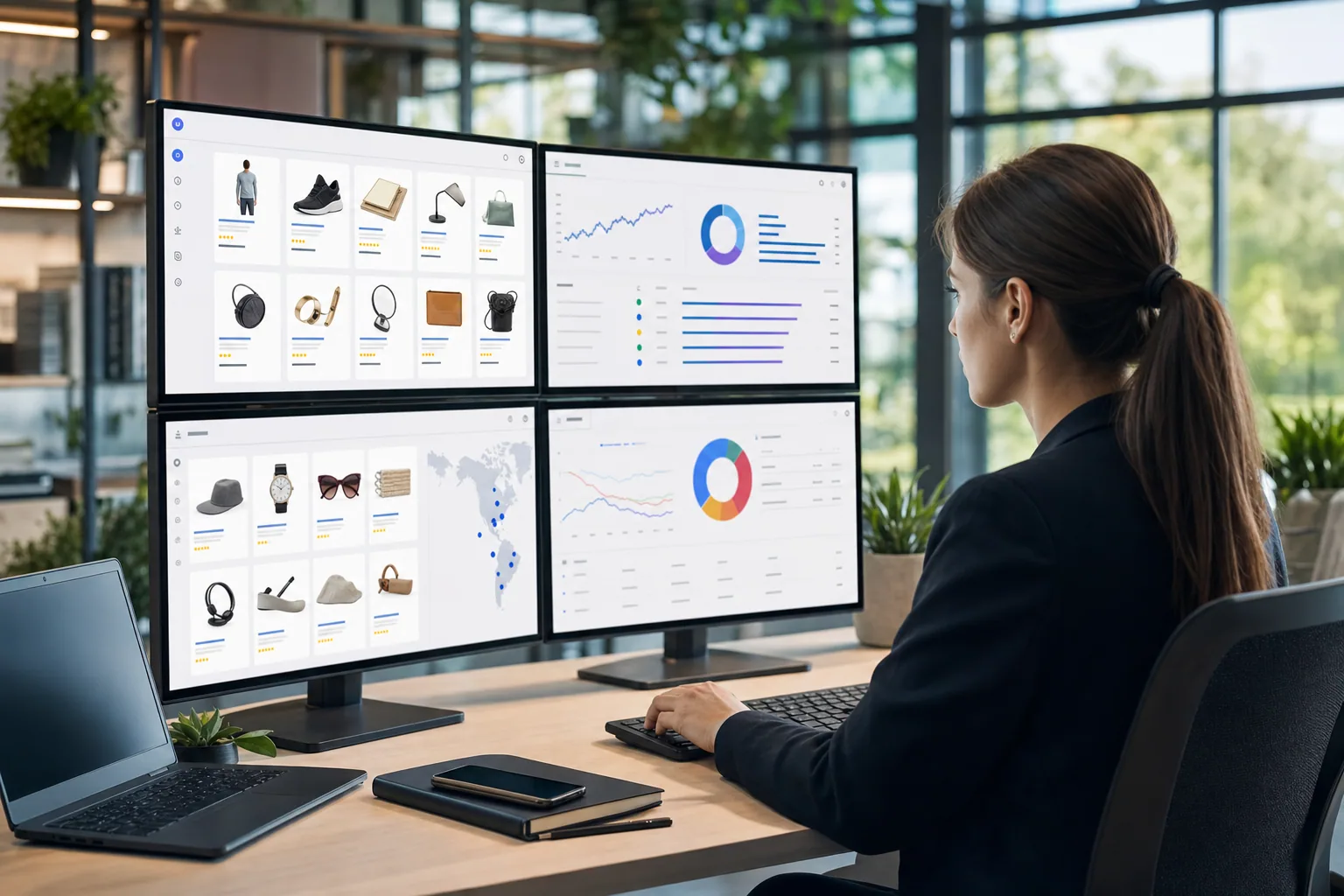
Google Shopping ads are one of the highest-intent channels available to eCommerce brands. When someone types a product query into Google, Shopping ads appear at the top of search results with a product image, price, and merchant name. For brands running serious ad budgets, this channel compounds fast when you know what you're doing.
Yet most brands treat Shopping like a set-and-forget channel. They upload a feed, toggle bidding, and wonder why their ROAS stalls while their feed slowly goes stale. The reality is that Google Shopping ads require the same level of daily iteration and ruthless testing as any other high-volume ad platform. The mechanics are different from Search or Meta, but the principle is the same: you win by diagnosing which levers move first, deploying multiple angles fast, and killing losers within 48 hours.
This guide walks you through how to set up Google Shopping ads properly, then optimize them like you mean it.
What Google Shopping Ads Actually Are
Google Shopping ads are product-level ads that appear in Google Shopping results and the top of standard Google Search results for product queries. Unlike text-based Search ads, Shopping ads display an image, product title, price, store rating, and seller name. Each ad links directly to a product page on your site.
The key difference from other ad channels: you don't write ad copy. Google pulls product data directly from your Merchant Center feed. The feed becomes your creative inventory. If your feed is weak, slow, or outdated, your Shopping ads will be too.
Google Shopping ads work across three main placements:
- Google Shopping tab: The dedicated shopping search results page.
- Google Search results: Top of the page for product queries.
- Google Images: Product ads in image search results.
- Partner sites: Google Display Network and partner sites that show Shopping ads.
Because Google pulls product data from your feed, feed quality, product selection, pricing, and landing page experience all influence your ad rank and conversion rate.
Setting Up Google Shopping Ads From Scratch
Step 1: Create and Verify a Google Merchant Center Account
Your Merchant Center account is where you upload your product feed. Google uses this feed to match customer searches to your products and create your ads.
Go to merchantcenter.google.com, sign in with your Google account, and register your business. You'll need to verify that you own the website where the products live. Google will ask for your business type, primary website, and service country.
Once verified, you can start uploading product data.
Step 2: Create and Optimize Your Product Feed
Your product feed is a data file, usually a CSV or XML file, that contains product information. Minimum required attributes for each product are:
- Product ID: A unique identifier for each SKU.
- Title: Product name (under 150 characters).
- Description: Product details.
- Link: URL to the product page.
- Image Link: High-quality product image URL.
- Price: Current price in your local currency.
- Availability: In stock, out of stock, or preorder.
- Condition: New or used.
- Google Product Category: Which Google category the product fits.
But minimum is not optimal. To stand out, add optional attributes:
- Custom labels: Create your own labels to segment products by margin, bestseller status, or launch date.
- Color, size, material, and other variant attributes.
- Sale price and sale effective date for promotions.
- Shipping cost and shipping time.
- Merchant ratings and review count.
Keep your feed current. Stale pricing or out-of-stock products tank your Quality Score and waste ad spend. Set up automated feeds from your eCommerce platform (Shopify, WooCommerce, etc.) so price and inventory sync hourly, not monthly.
Step 3: Link Merchant Center to Google Ads
Go to your Google Ads account, navigate to Tools > Merchant Center Accounts, and link your Merchant Center account. This tells Google to use your product feed for your Shopping ads.
Once linked, create a new Shopping campaign. You'll select which feed to use, which countries to target, and which conversion tracking to measure.
Step 4: Set Up Conversion Tracking
Google Shopping measures success by conversions, not just clicks. Install the Google conversion tracking pixel on your website (or use the Google Ads tag) so Google can see which clicks turned into purchases.
Without clean conversion tracking, you're flying blind. You won't know which products actually generate profit, and Google's automated bidding won't optimize correctly.
Google Shopping Ads Optimization: Where Most Brands Get It Wrong
Once your campaign is live, most brands check in monthly. They look at total ROAS, maybe adjust bids, then leave it alone. Meanwhile, their feed is staling, their competitors are moving faster, and their winners are underfunded.
Here's how to actually optimize Google Shopping ads:
Diagnosis: Segment by Performance
Don't optimize all products equally. Segment your product feed by custom labels based on margin, traffic, or lifecycle stage. Then create separate Shopping campaigns for each segment with different bid strategies:
- High-margin bestsellers: Aggressive bidding, full budget.
- New launches: Test budget, aggressive bidding to gather data.
- Seasonal or clearance: Lower bids, targeted by time.
- Lower-margin catalog fillers: Lower bids or excluded entirely.
This requires discipline. Many brands would rather run one broad campaign and hope the algorithm figures it out. The algorithm won't. You have to.
Creative Iteration: Feed and Landing Page
Your feed IS your creative. Optimize it:
- Product images: Use clean, well-lit, high-resolution images. A bad product photo kills conversion rate faster than a mediocre price.
- Product titles: Lead with the problem solved or the key benefit, not just the SKU. "Waterproof Phone Case with Built-in Kickstand" outperforms "Case-47B".
- Custom labels: Use them to test promotional messaging. Label bestsellers as "bestseller" in the feed so Google can badge them in ads if the merchant rating shows.
- Sale pricing: Temporary discounts in the feed show "Sale" tags in ads, which lift click-through rate.
Your landing pages matter too. Google measures landing page experience as part of your Quality Score. A product page that loads fast, shows the same image as the ad, includes customer reviews, and has a clear checkout path will convert better and earn higher ad rank.
Bid Strategy and Automation
Google Shopping supports several bid strategies:
- Manual CPC: You set bids per product. Fine-grained but time-intensive.
- Target ROAS: Google automatically adjusts bids to hit your target return on ad spend. Requires 30+ conversions per week to learn.
- Maximize Conversion Value: Google optimizes for total purchase value, not just conversion count. Works when your products have wildly different margins.
- Minimize Cost Per Acquisition: Google keeps cost per conversion below your target. Requires steady conversion volume.
For most brands running serious ad budgets, Target ROAS is the play. Set a realistic ROAS target based on your margins and past performance, and let Google learn. Check daily for the first two weeks, then weekly.
Daily Monitoring and Killing Losers
Even with automated bidding, you need daily insight. Check your Google Shopping campaign daily for the first 30 days, then at least three times per week:
- Which products are driving conversions? Which are just generating clicks?
- Is your feed syncing correctly and inventory showing as in-stock?
- Are low-performing products wasting budget? Pause them.
- Are seasonal shifts changing demand? Update custom labels and adjust bids.
- Is your conversion tracking firing correctly?
The brands that win on Google Shopping don't just set campaigns live. They iterate. If a product is driving traffic but zero conversions after 200 clicks, pause it and test a different image or landing page. If a product is converting at 15% AOV but you're bidding it like a 3% converter, raise the bid.
Why Feed Quality Compounds
Google Shopping is one of the few ad channels where your inventory data directly affects ad performance. A competitor with a faster-syncing feed, cleaner product data, and better images will outrank you on the same search query, all else equal.
This is why enterprise brands and well-funded eCommerce operations win on Google Shopping. They treat their feed like their ad creative, not like a backend database. They update it daily, test new product images, segment by profitability, and kill products that don't move.
If you're running $100k+ monthly ad spend and your feed hasn't been reviewed in three months, you're leaving money on the table.
Scaling Google Shopping Ads
Once you've dialed in your top-performing segments and products, scaling is about budget allocation and bid adjustments. If your bestsellers segment is doing 4:1 ROAS and your new launches segment is doing 1.5:1 ROAS, shift budget from new launches into bestsellers. If a product is converting at 20% AOV and you haven't raised its bid in two weeks, raise it.
Scaling also means expanding your feed. Add more products, test new categories, and segment again. The compounding effect comes from having more products in your feed at favorable bid positions, converting at healthy ROAS.
At scale, Google Shopping can be one of your strongest channels. Some of the highest-growth eCommerce brands run half their paid revenue through Shopping.
The difference between brands that plateau on Google Shopping and those that scale is not the platform. It's discipline. They diagnose which levers move first, deploy multiple product segments fast, iterate daily, and scale the winners aggressively. They treat their feed like their ad account and their landing pages like extensions of their ads.
If you're ready to move fast and iterate ruthlessly across all your paid channels, including Google Shopping, a team that handles your entire paid media ecosystem across Meta, Google, and TikTok in parallel can help you spot these levers faster and test them at scale.